Printing, Scanning and Copying
Multi-Functional Device Printers (MFDs) are located across all campuses for your printing, scanning and copying needs.
This page sets out how to use them and answers some other questions you may have.
How to print from a personal device (BYOD)
Students can print from their laptop, desktop computers, or from mobile devices.
To do this, students will need to download the printer driver, UniFLOW by following these steps:
-
- Go to the Printing Portal.
- Log in using your Unitec credentials e.g. abcde97@myunitec.ac.nz
- Select Start Printing in the printing portal.
- Select the relevant printer driver i.e. Microsoft Windows and Mac printer drivers are available under Install Printer Driver for laptops and desktop PCs. Alternatively install the relevant mobile app.
Note that you will need to accept the license and account terms and conditions when installing the UniFLOW software. It is recommended to reboot your device following the installation of the new printer driver. - When the printer driver has been installed you are ready to print.
Select “Secure Printing” from the dropdown menu of your printer options.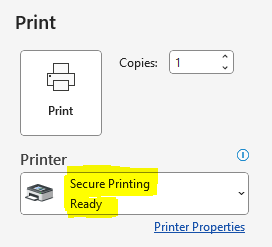
- Tap your Student ID card on the card reader on any MFD to release your print items.
Note: After your print job has been submitted it will be retained for up to 10 hours. During this time, you can collect your print job from any printer at MIT or Unitec. If it is not released before this time, it will be removed from the queue.
Printing, copying and scanning information will also be located next to the printers
Your Printing Balance
You can view or top up your account balance in the dashboard of the Printing Portal under My Budget.
You have a primary and secondary wallet. Any funds you add will go into your Secondary Wallet while any funds added by Unitec will go into your primary wallet.
There is a minimum top up amount of $5 and a maximum of $20 when using the payment portal.
NB: The total balance of primary and secondary wallets must be in credit before you can print or copy.
Scanning is free and will operate even with a zero balance on your account.
How do I add funds to my printing account?
In the dashboard of the uniFLOW portal under My Budget you will find a + Add Funds button.
Click the link and follow the instructions to add funds with the PayPal payment portal to your printing account .
Your printing account and charges
-
- A4 black and white printing or copying (single) – 10 cents per page
- A4 colour printing or copying (single) – 20 cents per page
- A3 black and white printing or copying – 20 cents per page
- A3 colour printing or copying – 40 cents per page
- Scanning – no charge.
Terms of Use
Printing and scanning on our systems is subject to MIT and Unitec’s policies.
You must not use our printers or scanners for anything that is illegal.
We understand that sometimes people use the institutes printers and scanners for minor personal use. That said, we recommend that you do not use these printers for any sensitive documents that could result in loss or harm. For example, scanning of credit cards or passports. If you do so, this is entirely at your own risk, and MIT and Unitec disclaim all responsibility.
If you have any questions, Unitec students can email IT support itsupport@unitec.ac.nz or
phone 0800 275 467 (0800 ASKIMS) during normal business hours.
Printing tips
- The default printing is set to black & white, double sided printing. For single-sided printing, change the ‘Print Properties’ before you send your document to the MFDs.
- Before printing it is a good idea to compress large file sizes, especially photos and pdfs; this will greatly speed up how long it takes to print.
- When you tap your card at the print station you will only see your own print jobs, not those of other users. This means that you can’t use a temporary card or a friends ID card to print.
- Print jobs stay on the system until they are printed, or up to 10 hours. Print jobs not released or printed after 10 hours will be deleted from the queue.
Scan and send to your email
Scanning direct to your email is recommended as it is fast and works well.
If you are scanning a number of documents to your email address, you can get your email address loaded onto your student ID card. Ask a member of the Ask Me staff or copy centre staff to do this for you.
Follow the instructions below
- Tap your student ID card on the reader
- Select Scan from onscreen menu
- Place document(s) face-up in ‘Automatic Document Feeder’ or face-down on ‘Glass’
- Select Start from onscreen menu
- Press Start button to scan
- Press Logout button when finished
Specialist copying and printing services
The Unitec Copy Centre offers a full range of services, including photocopying, colour copying, wide format plan printing, poster printing, laminating and binding and desktop publishing. They can download graphic files from email, CD and USB to their laser printers. They stock a wide range of paper and card samples, as well as all Unitec stationery.


